2K Webcam for PC with Microphone
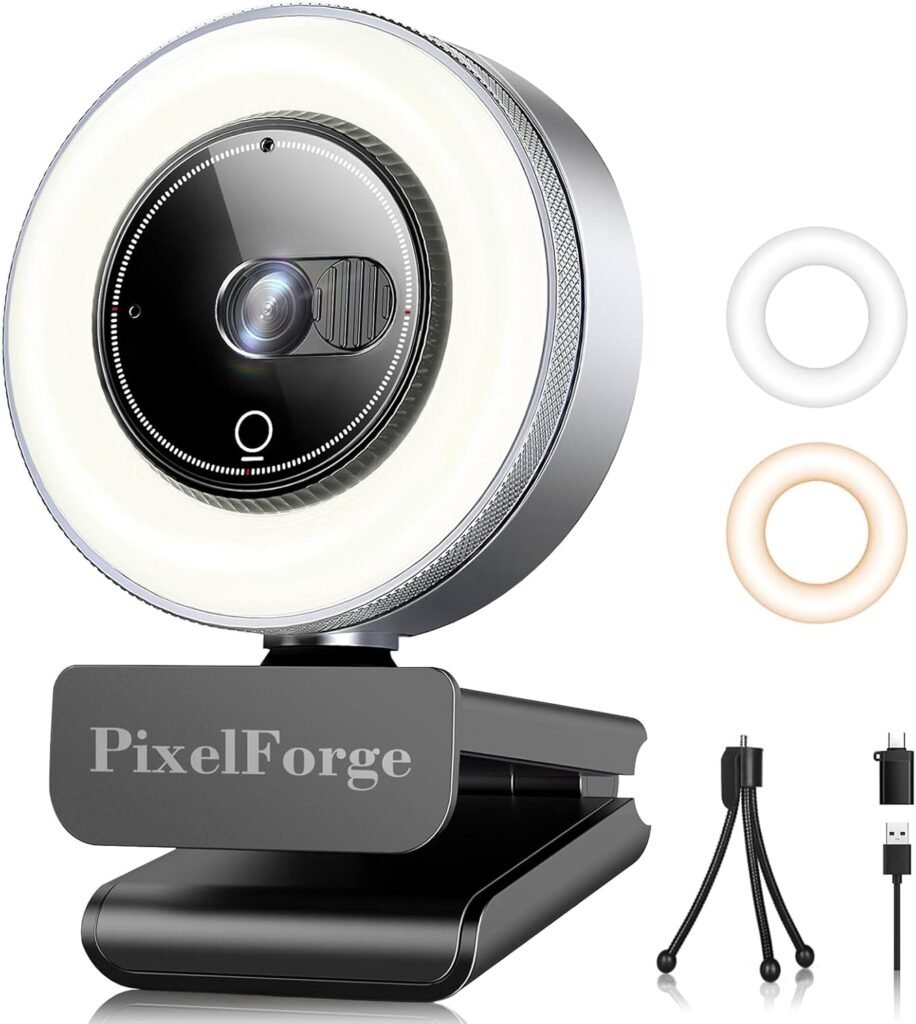
2K Webcam for PC with Microphone: Crisp Video, Clear Audio for Work & Play
A 2K webcam for PC with microphone is an external camera designed to deliver high-resolution video (often 1440p / QHD) along with built-in audio capture for meetings, streaming, online classes, gaming, and content creation. It offers a noticeable upgrade over standard 720p or 1080p cameras — sharper detail, better clarity in varied lighting, and integrated sound that’s good enough for most everyday needs.
Whether you’re working from home, teaching online, conferencing with clients, or broadcasting live, a 2K webcam with a mic brings professional-level presence to your screen.
Why 2K Resolution Matters
Most built-in laptop webcams are 720p or 1080p — sufficient for casual calls but limited in detail and clarity. A 2K webcam delivers around 2560 × 1440 pixels, which means:
- Text, facial details, and backgrounds look sharper
- Image remains clearer even when zoomed in digitally
- Video appears more professional on livestreams and recordings
- Picture quality holds up better in varied lighting
For business presentations, content creation, or streaming, 2K provides a noticeable visual improvement without requiring heavy bandwidth like 4K.
Built-In Microphone: Convenience & Quality
A webcam with an integrated microphone simplifies setup and reduces clutter. Key advantages include:
- Plug-and-play convenience: No separate mic setup needed
- Synchronized audio and video: Reduces lip-sync issues
- Directional pickup: Many webcams use dual or noise-reducing mics
While built-in mics won’t match high-end standalone units, a decent webcam mic delivers clear speech quality that’s more than sufficient for video calls, remote teaching, interviews, and casual streaming.
Core Features to Look For
1) Video Quality & Frame Rate
Good 2K webcams typically offer:
- 2K (1440p) resolution
- 30 or 60 FPS (frames per second) Higher frame rates (60 FPS) make motion smoother — useful for gaming streams, dynamic presentations, or active content.
2) Autofocus & Light Correction
Autofocus keeps you sharp even if you move.
Low-light or auto exposure correction adjusts brightness — helpful if lighting conditions change during calls.
3) Field of View (FOV)
Field of view determines how much space the camera captures:
- Wide FOV (90°+): Captures more background, good for group calls
- Standard FOV (60–75°): Focuses on individual or two people
Pick based on your typical use (solo calls vs group calls).
4) Built-in Microphones
Check for:
- Noise reduction
- Stereo pickup
- Multiple mic elements These improve clarity and minimize background noise.
5) Mounting & Flexibility
Look for:
- Adjustable clip or tripod mount
- 360° swivel or tilt This makes positioning easier on monitors, laptops, or desktops.
6) Privacy Shutter
A physical shutter adds peace of mind when the camera isn’t in use.
Typical Uses & Scenarios
1) Remote Work and Video Conferencing
Sharper video boosts professionalism in meetings, pitches, and client calls.
2) Online Teaching & Webinars
Clear visuals help keep students engaged and make presentations easier to follow.
3) Live Streaming & Content Creation
2K resolution gives streamers a quality lift over standard webcams without massive bandwidth needs.
4) Virtual Interviews
A clear image and reliable mic improve first impressions.
5) Gaming & Social Chats
Show your reactions in high detail while chatting on Discord, Zoom, or Twitch.
Setup & Best Practices
Placement
- Eye level or slightly above
- Avoid strong backlight (e.g., windows behind you)
Lighting
- Use soft front lighting (desk lamps, ring lights)
- Even lighting reduces shadows and improves video clarity
Audio Tips
- Position mic near your mouth (webcam integrated mics typically work best when you sit within a reasonable distance)
- Reduce background noise (close doors, turn off fans)
Software Settings
- Use your webcam’s software (if provided) to adjust brightness, contrast, and mic sensitivity
Comparing Webcam Types
| Webcam Type | Resolution | Microphone | Best For |
|---|---|---|---|
| Standard 720p | 720p | Basic | Casual video chats |
| 1080p Full HD | 1080p | Moderate | Everyday calls |
| 2K Webcam | 1440p | Integrated mic | Professional use, streaming |
| 4K Webcam | 2160p | Optional | High-end production |
A 2K webcam strikes a sweet spot between quality and performance — clearly superior to 1080p without the higher bandwidth needs of 4K.
Quick Buying Checklist
- 1440p (2K) resolution
- 30–60 FPS frame rate
- Autofocus & low-light correction
- Dual or noise-reducing microphones
- Adjustable mount or tripod compatibility
- Privacy cover or shutter
Wrapping Up
A 2K webcam for PC with microphone is an accessible way to boost your video presence — whether you’re working remotely, teaching, streaming, or staying in touch with family and friends. With sharper video, reliable audio, and easy setup, it turns ordinary calls into clear, confident communication.
Choose a model with the right balance of resolution, mic quality, and flexibility to suit your daily needs, and you’ll enjoy improved video experiences across work, study, and entertainment.
*Disclosure: As an Amazon Associate, this website may earn a commission from qualifying purchases at no additional cost to you.*