External CD DVD Drive
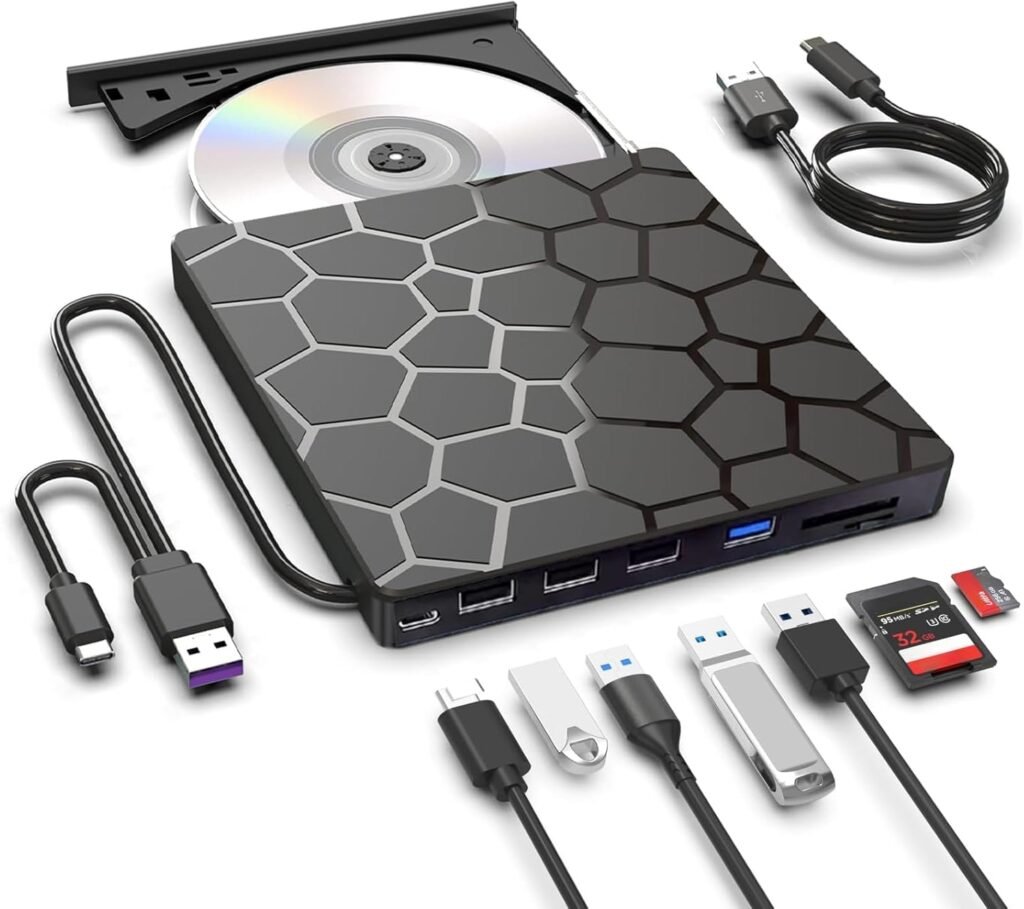
External CD DVD Drive — Portable Optical Media Solution for Modern Devices
An external CD DVD drive is a compact, plug-and-play optical disc drive that connects to a laptop, desktop, or tablet via USB to read and write CDs, DVDs, and in many cases rewritable media. As newer computers — especially ultrabooks and MacBooks — increasingly ship without built-in disc drives, an external drive brings back full access to optical media for software installation, media playback, data backup, and disc burning.
This comprehensive guide explains what an external CD DVD drive is, how it works, key features to look for, common use cases, compatibility notes, and everyday tips for best performance.
What Is an External CD DVD Drive?
An external CD DVD drive is a stand-alone optical drive housed in a lightweight enclosure and connected to a computer via USB (often USB-A or USB-C). Unlike internal drives that install inside a desktop tower, external drives are plug & play — simply connect and start using.
Most models support:
- CD-ROM (read only)
- CD-R/CD-RW (read/write)
- DVD-ROM (read only)
- DVD-R/DVD-RW and DVD+R/DVD+RW (read/write)
- Some models support dual-layer DVD formats for higher capacity
External drives usually come with a tray or slot-load mechanism and firmware that supports standard disc formats.
How External CD DVD Drives Work
- Connect to Computer:
Plug the drive into a USB port (USB-A or USB-C). Many models are bus-powered, meaning they draw power directly from the USB connection. - Recognize Hardware:
The operating system (Windows, macOS, ChromeOS, Linux) detects the drive automatically and installs basic drivers if needed. - Insert a Disc:
Press the eject button or use the tray to insert a CD or DVD. - Read or Write Data:
Use built-in software to play media, install software, copy files, or burn discs. - Eject When Done:
Press the eject button to remove the disc safely.
Key Features to Look For
| Feature | What It Means |
|---|---|
| USB-C or USB-A Connection | USB-C is future-ready; USB-A works with older systems |
| Plug-and-Play Support | No driver installation needed for most operating systems |
| CD + DVD Read/Write | Ability to burn as well as read discs |
| Compatibility with macOS & Windows | Works with multiple systems out of the box |
| Slim, Portable Design | Easy to carry with laptops or on the go |
| Energy-Efficient Power | Bus-powered via USB without external adapters |
| Quiet Operation | Minimal noise when reading or writing discs |
When choosing an external drive, USB-C compatibility and read/write support boost versatility for modern devices.
Compatibility: What to Expect
Windows PCs
Most external drives work immediately with Windows 10, 11, and newer. They support:
- Disc playback
- Data burning (with included or third-party software)
- Backup discs
macOS
Apple laptops and desktops support external CD DVD drives natively. You can:
- Play music and movies
- Install older software that ships on disc
- Burn data or audio CDs using built-in or external apps
Chromebooks
Many Chromebooks support external drives for reading media and files; burning discs may be limited.
Linux
Linux distributions typically recognize external optical drives automatically for reading and often support burning with apps like Brasero or K3b.
Everyday Use Cases
Media Playback
Watch DVD movies or listen to music CDs without a built-in drive.
Legacy Software & Games
Install older titles or utilities that still ship on CD/DVD.
Data Backup & Archive
Create backup discs for important files or archive large data sets.
Disc Burning
Write files, video, or audio to writable CD/DVD formats for sharing or preservation.
Education & Work
Access lecture CDs or software provided on disc without relying on a built-in drive.
USB-C vs USB-A: What’s the Difference?
- USB-C:
Newer devices (MacBook, Dell XPS, Surface, many laptops) use USB-C ports — fast, reversible, and future-proof. - USB-A:
Standard on older laptops and desktops. Many external drives include USB-A cables or adapters.
Choosing a drive with USB-C support ensures compatibility with modern gear, and many include adapters so you can use them with older computers too.
Installation and Setup
- Connect to USB Port:
Insert the USB cable into your computer’s port. - Wait for Recognition:
Your OS should automatically detect and mount the drive. - Insert Disc:
Press the eject button and place a CD/DVD on the tray. - Use Appropriate Software:
- Media players for music/movies
- File Explorer/Finder for data
- Disc burning apps for writing discs
No drivers are usually required on modern systems.
Tips for Best Performance
- Eject Discs Safely:
Always use the “Eject” command from your OS or drive button to avoid data corruption. - Handle Discs Carefully:
Avoid fingerprints, scratches, and dust. - Don’t Force the Tray:
If a disc sticks, power down and retry gently. - Use in Flat Position:
Place the drive on a level surface to avoid read/write errors. - Check Compatibility:
Confirm USB-C support if your computer lacks USB-A ports.
How to Choose the Right External CD DVD Drive
Ask yourself:
- Do I need read only or read/write (burning) capability?
- Will I use USB-C, USB-A, or both?
- Do I prefer slim, travel-ready or rugged, durable design?
- Is multi-OS compatibility (Windows, macOS, Chromebook) important?
Matching features to your needs ensures the drive works seamlessly with your devices.
Final Summary
An external CD DVD drive brings optical media functionality back to modern computers that lack built-in disc drives. Whether you’re watching movies, installing legacy software, backing up data, or burning discs, an external drive delivers plug-and-play convenience and broad compatibility. By choosing a model with the right ports, Supported formats, and ease-of-use features, you gain reliable access to CDs and DVDs anywhere you go.
Affiliate Disclaimer
This blog contains affiliate links. If you click through and make a purchase, we may earn a small commission at no extra cost to you. We recommend products that offer compatibility, performance, and everyday usefulness for optical media access.