Laptop screen extender
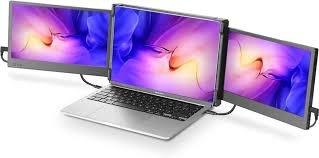
Laptop Screen Extender: Expand Your Workspace with Ease
A laptop screen extender is a game-changing accessory that allows you to expand your digital workspace without the need for bulky desktop monitors. Whether you’re working from home, studying, coding, gaming, or just need more screen real estate, a laptop screen extender provides the perfect solution for increasing productivity, multitasking, and enhancing your overall work experience.
In this guide, we’ll explore the benefits of using a laptop screen extender, the types available, and how they can help you get more done — all while staying portable and efficient.
What Is a Laptop Screen Extender?
A laptop screen extender is a portable, secondary display that connects to your laptop, giving you extra screen space for multitasking. These devices are typically powered through USB‑C, HDMI, or DisplayPort connections and offer a range of designs, from clip-on options to freestanding portable monitors. They help create a dual-monitor setup, allowing you to manage multiple applications simultaneously without constantly switching between windows or tabs.
Benefits of Using a Laptop Screen Extender
| Benefit | How It Helps You |
|---|---|
| Increased Productivity | Work on multiple documents or apps simultaneously without window juggling. |
| Improved Multitasking | Edit, research, and chat all at once — perfect for professionals and students. |
| Portable Workspace | Lightweight and easy to set up anywhere, ideal for remote work and travel. |
| Better Organization | Organize your workspace with a larger, more accessible digital layout. |
| Enhanced Viewing Experience | Larger screen area improves visibility for design, coding, and presentations. |
Types of Laptop Screen Extenders
1. Clip-On Screen Extenders
These are compact monitors that clip onto the side of your laptop, typically attaching directly to the hinge. They are convenient and easy to set up, offering a second screen without taking up much space.
Best For: Those who need a quick, portable solution for adding a second screen to their laptop while on the go.
2. Portable USB‑C or HDMI Monitors
These external monitors connect via USB‑C or HDMI and sit beside your laptop. They come in various sizes, and many offer high-resolution displays, great for working with detailed content like photos, videos, or code.
Best For: Users who need a more stable and larger display option for long-term use.
3. 2-in-1 Monitors
These versatile models function both as a laptop screen extender and as a standalone monitor when needed. They often come with adjustable stands, allowing you to position the screen however you like.
Best For: Professionals who want flexibility and an all-in-one solution.
Features to Look for in a Laptop Screen Extender
| Feature | Why It Matters |
|---|---|
| Resolution | Higher resolution provides sharper images and a better viewing experience, especially for design work or media consumption. |
| Connectivity | USB‑C is the most efficient connection type for power and data transfer, but HDMI is also widely supported. |
| Display Size | A larger screen size (14–17 inches) can make multitasking more efficient, but also consider portability if you need a smaller option. |
| Weight and Portability | If you travel often, choose a lightweight, compact monitor that’s easy to carry in a backpack. |
| Battery Life | Longer battery life ensures that you can work without constantly needing to recharge. |
| Adjustable Stand | An adjustable stand helps position the monitor at the right height and angle, reducing neck strain during long sessions. |
How to Set Up a Laptop Screen Extender
- Check Compatibility
Ensure your laptop has the necessary ports (USB‑C, HDMI) for connection, and choose an extender that matches the type of connection your laptop supports. - Connect the Screen
Use the appropriate cable (usually USB‑C or HDMI) to connect the extender to your laptop. - Adjust Display Settings
Once connected, navigate to your laptop’s display settings to choose how you want the screen to behave — either as an extended desktop or mirrored screen. - Position the Extender
Place the screen beside your laptop or adjust the stand for optimal viewing. - Organize Your Workspace
Arrange open apps or windows across both screens for maximum productivity.
Popular Use Cases for a Laptop Screen Extender
| Scenario | Why a Screen Extender Helps |
|---|---|
| Remote Work | Perfect for accessing multiple apps at once — video calls, email, and documents. |
| Gaming | Expand your gaming experience by adding a second screen for chat or strategy guides. |
| Content Creation | Open editing tools, timeline, and footage all at once for smoother workflows. |
| Coding & Development | Easier to view code and output simultaneously without toggling between windows. |
| Studying & Research | Keep textbooks, notes, and reference materials open on one screen while working on the other. |
How Long Does It Take to Set Up a Laptop Screen Extender?
Setting up a laptop screen extender is quick and simple. Most extenders connect in minutes, and the display settings are easy to adjust. Within 5–10 minutes, you can be working on a dual-screen setup.
Do Laptop Screen Extenders Replace a Full Desktop Monitor?
Laptop screen extenders provide a convenient secondary screen, but they don’t fully replace the need for a dedicated desktop monitor — especially if you’re working with heavy graphics, gaming, or video editing. They are, however, perfect for lightweight tasks, portability, and boosting your multitasking capabilities.
Final Thoughts: Maximize Your Digital Workspace
A laptop screen extender is a must-have accessory for anyone looking to boost productivity, streamline workflows, and multitask more effectively. Whether you’re working from home, on the go, or just need a more organized digital workspace, these devices offer a practical, portable solution.
By adding a secondary screen, you’ll increase your efficiency, reduce window clutter, and improve your overall work experience — all while maintaining the flexibility and portability of your laptop.
Amazon Affiliate Disclosure
This post contains affiliate links. As an Amazon Associate, I earn from qualifying purchases at no extra cost to you.