Webcam with microphone
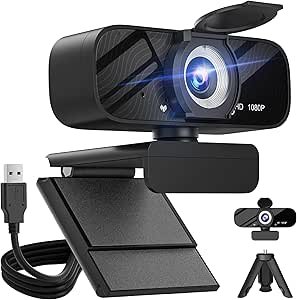
Webcam with Microphone — Clear Video and Audio for Meetings, Streaming, and More
A webcam with a built‑in microphone is a compact camera you attach to your computer, laptop, or monitor to capture high‑quality video and audio for video calls, online meetings, streaming, remote work, virtual classes, and content creation. Unlike built‑in laptop cameras and mics, dedicated webcams typically deliver crisper video, better low‑light performance, and clearer sound, making you look and sound more professional.
This guide explains how a webcam with microphone works, what features matter, and how to choose the best one for your needs.
What Is a Webcam with Microphone?
A webcam with microphone combines two components:
- Camera: Captures video of you or your surroundings
- Microphone: Picks up your voice so others can hear you clearly
Most models plug into your computer using USB‑A or USB‑C and work with common apps like Zoom, Teams, Google Meet, Skype, OBS, and live‑streaming platforms.
Key Benefits
| Benefit | Why It Matters |
|---|---|
| Sharper Video Quality | Better clarity and resolution than built‑in cameras |
| Clear Audio | Built‑in mic means no extra mic needed for casual calls |
| Flexible Positioning | Clip or stand places camera at the best angle |
| Improved Low‑Light Performance | Some models handle dim rooms better |
| Plug‑and‑Play Setup | Easy to install without complicated drivers |
| Better for Streaming & Recording | More reliable than laptop webcams |
Resolution & Frame Rate Explained
| Feature | Meaning | Typical Use |
|---|---|---|
| 720p (HD) | 1280×720 | Basic video calls |
| 1080p (Full HD) | 1920×1080 | Most video chats & streaming |
| 2K / 1440p | Higher clarity | Sharper streaming & recordings |
| 4K | Ultra high‑res | Professional content creation |
| Frame Rate (fps) | Smoothness of motion | 30 fps is standard; 60 fps is great for smoother video |
1080p at 30 fps is a good balance for everyday video calls, remote work, and casual streaming. Higher resolutions and frame rates make video look smoother and clearer, especially for content creators, streamers, or recordings.
Microphone Quality Matters
A built‑in mic helps most everyday uses, but quality varies:
| Mic Feature | Benefit |
|---|---|
| Noise Reduction | Less background noise |
| Stereo Audio | Wider sound capture |
| Dual Mics | Better voice pickup from multiple angles |
| AI Noise Filtering | Software‑enhanced clarity |
For podcasting or professional broadcasts, many users still prefer external mics — but built‑in units are great for video calls and meetings.
Essential Features to Look For
| Feature | Why It Helps |
|---|---|
| Resolution (1080p+) | Clearer, more detailed video |
| Auto Focus | Keeps you sharp, even if you move |
| Low‑Light Correction | Better video in dim rooms |
| Wide‑Angle Lens | Captures more of the room |
| Built‑In Mic (Noise Cancelling) | Better voice clarity |
| Privacy Shutter | Covers camera when not in use |
| Adjustable Mount/Tripod | Customized positioning |
| USB‑C / USB‑A Compatibility | Works with most computers |
Setup & Installation
- Connect to Computer
Plug the webcam’s USB into your laptop or desktop USB port. - Position the Camera
Attach the clip to your monitor or place on a mini tripod for best eye‑level framing. - Open Your App
Zoom, Teams, Meet, Skype, or streaming software. - Select Webcam & Mic in Settings
Choose your new webcam as both camera and microphone source. - Adjust Angle & Lighting
Make sure your face is well‑lit from the front, not backlit.
Most webcams are plug‑and‑play — no extra software needed.
Everyday Use Cases
Work Meetings — Crystal‑clear video and audio improve remote collaboration.
Online Classes — Students and teachers get sharper video and better sound.
Streaming & Content Creation — Better visuals and audio for Twitch or YouTube.
Telehealth Appointments — Clearer communication with doctors.
Virtual Events & Interviews — Professional remote presence.
Lighting Tips to Improve Quality
- Front light: Place a lamp or window in front of you to illuminate your face.
- Avoid bright backlights: Strong light behind you can darken your face.
- Soft lighting: Diffused light reduces shadows and glare.
- Desk lamps or ring lights: Great for improving webcam visibility.
Privacy & Security
- Built‑in privacy shutter: Physically covers the lens when not using the camera.
- Disable camera when not in use: Unplug or use the shutter.
- System permissions: Ensure your apps only access the webcam when allowed.
Quick Feature Summary
| Feature | Recommended |
|---|---|
| Video Resolution | 1080p or higher |
| Frame Rate | 30 fps (60 fps if you stream) |
| Autofocus | Yes |
| Built‑In Mic | Noise‑canceling preferred |
| Mounting | Clip + tripod support |
| Connectivity | USB‑A or USB‑C |
Final Summary
A webcam with microphone is an essential upgrade for anyone doing remote work, online learning, streaming, or frequent video chats. With high resolution, reliable audio, and easy setup, it makes your virtual presence look and sound much better than standard built‑in laptop cameras and mics.
Choose a model with 1080p or higher video, noise‑canceling mic, and easy mounting to get the best experience for calls, classes, and content creation.
*Disclosure: As an Amazon Associate, this content may earn a commission from qualifying purchases at no additional cost to you.*